123 Flash Chat Server Software
Home
User Manual
Home
  • Introduction
  • Installation and Upgrade
  • Admin Panel
  • License Info
  • Code Generator
  • Code Generation
  • Basic Settings
  • View Settings
  • Skin Setting
  • Message Settings
  • Sound Settings
  • Cache Settings
  • Custom Menu Items
  • Advertising Settings
  • Predefined Message
  • Flash Emotion
  • Sound Message
  • Font Size Settings
  • Greeting Settings
  • Registration Settings
  • Room Settings
  • About Add Button
  • About Delete Button
  • About Modify Rooms
  • System Settings
  • Basic System Settings
  • Language settings
  • Filter Words
  • Integration Panel
  • User Management
  • Add User
  • Edit User
  • Admin Account
  • Ban Settings
  • Module Settings
  • Friendlist Module
  • Encrypt-Message Module
  • Event-Chat Module
  • Invisible-Admin Module
  • Moderated-Chat Module
  • Change-Nickname Module
  • Avatar-Chat Module
  • Audio/Video Module
  • White-Board Module
  • File Transfer
  • Image-Transfer Module
  • FMS-Server-URL
  • Handwriting
  • Invitation Bot
  • System Management
  • Monitor Panel
  • Announcement Panel
  • Restart
  • Import Data
  • Affiliate
  • Submit Ticket
  • Website Integration
  • DIY Skins and Smiley
  • For Developers

Home HomePre page View Settings | Message Settings Next page

Skin Setting


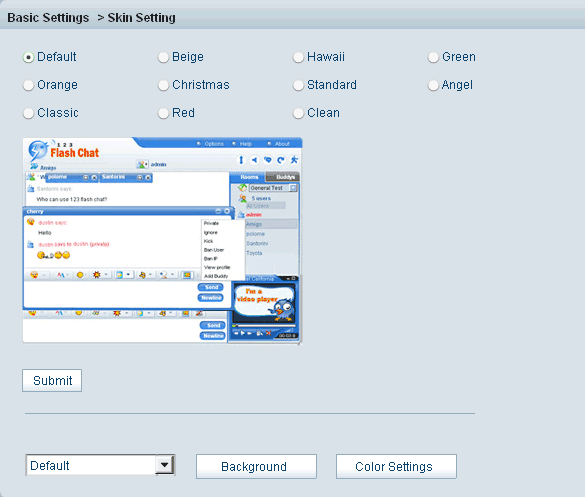
Eleven skins are offered for your choice. Select your favorite and click Save.

In fact you can add your own background here, say we need to add a background file: 123flashchat.swf to skin Christmas, the detailed steps is as follows:

Select Christmas in the listbox at the bottom of skin setting panel.
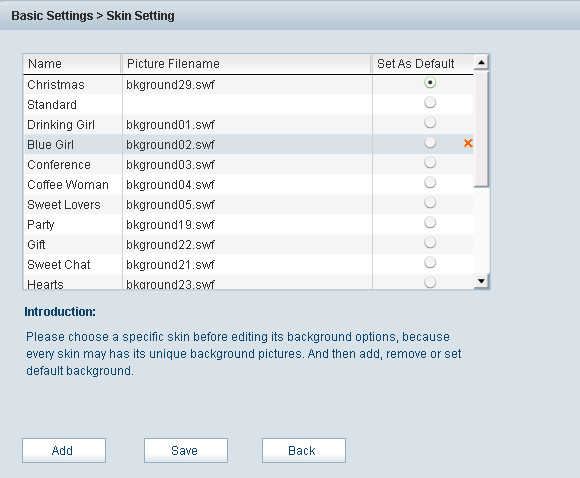
Click Background.

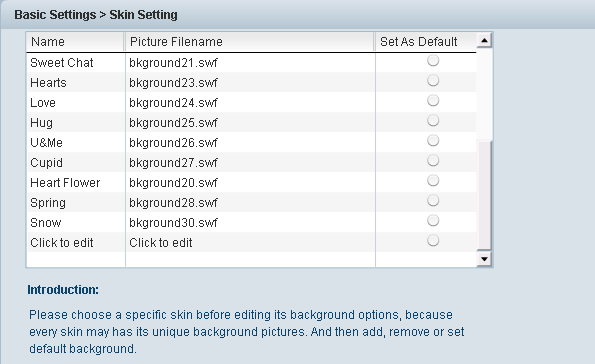
Scroll down to the bottom of the listbox, click Add.
A Click to edit item would appear at the bottom of the listbox.

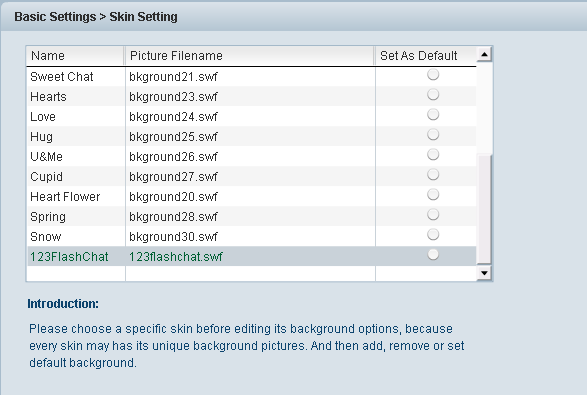
Left-click the item, the text in it would be cleared, enter your background file's name and picture file name here, click Save.

Copy 123flashchat.swf to the corresponding folder on your server, in this case : <123FlashChatServer install directory>\client\skin\christmas.

Browse to <123FlashChatServer install directory>\server\etc\groups\default\skin\xmas, open skin.xml.
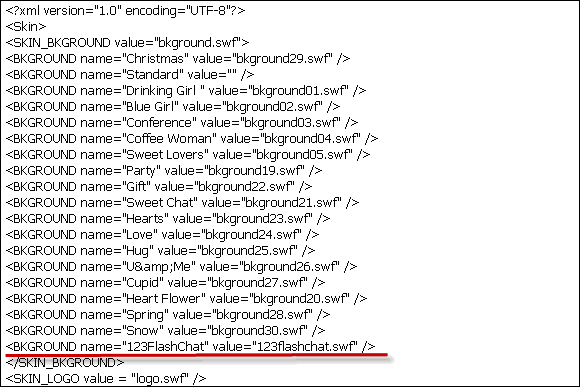
Add this line:<BKGROUND name="123FlashChat" value="123flashchat.swf" /> between <SKIN_BKGROUND value="bkground.swf"> and </SKIN_BKGROUND > and save .

Now, refresh your chat room page, click Change background, 123FlashChat would appear in background list, click it, the background would be changed to 123flashchat.

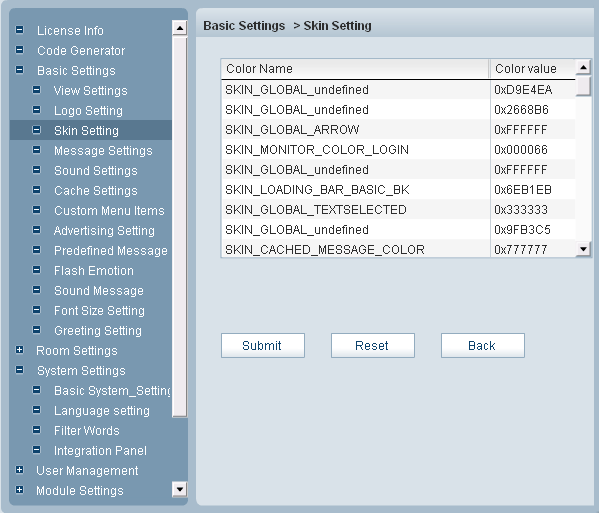
In fact you also can change your color settings; click Color Settings in Skin Setting panel, the following window would open:

Select the item that you need to modify and enter your desired value in the corresponding Color Value filed, click Save to implement the modification, click Reset to restore the default values, click Back to return to Skin Setting panel.


Related links:

View Settings

Sound Settings

Custom Menu Items

Predefined Message

Sound Message

Greeting Settings


Home HomePre page View Settings | Message Settings Next page

Home | About | Demo | Features | Download | Order | FAQ | Support | Reviews | Affiliate | Links | Sitemap | Community | Blog
 
Chat Server Software| Flash Video Chat| Online Webcam Chat| Webcam Chat Room Software| Customizable Chat Program | Instant Messaging Chat Server
Flash Chat in China | Chat Plugin| Free Chat Host| Free Chat Server Download| Live Support Software | Add Chat Room to Website
Legal Disclaimer| Privacy Statement | Terms of Use Copyright © 2001-2009 TopCMM Software Corp. All Rights Reserved.